
How Freelancers Manage Multiple Client Social Accounts Safely

Managing social media and advertising accounts for multiple clients is a lucrative path for digital marketing freelancers. However, doing so on a single device standard browser often triggers security checkpoints or bans due to shared IP addresses and browser fingerprints.
This guide explains the technical risks of account crossover and provides a structured workflow to segregate client profiles safely using dedicated proxy configurations and isolated browser environments.
Table of Contents
Why Do Client Accounts Suffer Linked Bans?
Major online platforms track Network IPs and Browser Fingerprints to detect automated or suspicious activity. When multiple client profiles are accessed from a single device using a standard browser, platforms link them to a single physical source.
If one client's account faces a policy restriction, other accounts logged in on the same browser environment are at risk of secondary restrictions due to shared hardware metrics like Canvas and WebGL parameters.
Common Insecure Management Habits
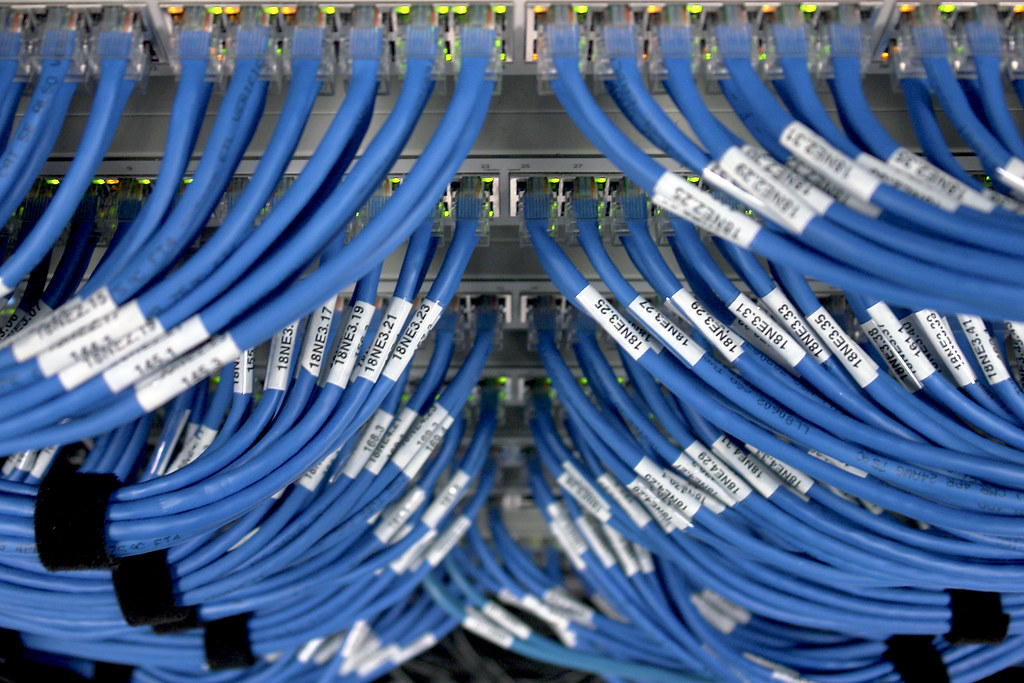
Photo: andrewfhart / flickr · CC BY-SA 2.0
Using standard Chrome profiles or basic VPN extensions does not spoof hardware-level fingerprints. Standard profiles share system resources and font lists, making account association trivial for platform algorithms.
Free VPNs often route traffic through flagged shared IP pools, increasing the likelihood of identity verification checkpoints.
Standardized Profile Isolation Workflow
Adopting antidetect browser technology allows freelancers to construct fully isolated digital environments for each client. Each profile operates with its own cookies, storage, and assigned proxy.
This separation guarantees that client accounts do not cross-contaminate data, ensuring consistent login locations even when working remotely.
How PUR Browser Streamlines Client Account Management
PUR Browser provides unlimited profile creation with noise injection for Canvas, WebGL, AudioContext, and font lists to maintain fingerprint consistency.
Users can attach HTTP/SOCKS5 proxies, test latency, and automatically synchronize time zones and language settings. All profile data is stored locally on the user's device, ensuring privacy and data control.
5-Step Setup Guide for New Clients
Step 1: Download PUR Browser from purbrowser.com. Step 2: Prepare a dedicated proxy matching your client's region. Step 3: Create a profile, attach the proxy, and run a connection check. Step 4: Import cookies or log in directly. Step 5: Close the profile to save session data locally.
Compliance and Ethical Considerations
Environment isolation technology should be used exclusively for legitimate business management, privacy protection, and team workflow organization. Always adhere to platform terms of service and client confidentiality agreements.
Experience PUR Browser — Unlimited Profile Anti-Detect Browser
100% Canvas, WebGL, and WebRTC isolation. Ultra-lightweight build saving 45% RAM. Download and try for free today!
Conclusion
Maintaining segregated environments is essential for freelancers managing client portfolios safely. Download PUR Browser at purbrowser.com to streamline your multi-account workflow today.
Frequently Asked Questions
Are standard Chrome profiles sufficient for client management?
No. Standard profiles do not mask hardware fingerprints like Canvas or WebGL, nor do they assign unique IP addresses, leaving accounts vulnerable to cross-detection.
Do I need dedicated proxies for each client profile?
Yes. Assigning a dedicated static proxy ensures consistent IP location, preventing security triggers caused by frequent IP changes when working from different locations.
Where does PUR Browser store profile data?
PUR Browser stores profile data locally on your machine, ensuring data privacy and complete ownership over client credentials.
Can I export cookies to share with team members?
Yes, PUR Browser supports JSON and Netscape cookie import/export, alongside batch profile operations for effective teamwork.